 Fede Bonel Tozzi
Puck 0.24 lets you organize fields into groups and tabs, adds checkbox fields, improves drag-and-drop with drag handles, and includes several other API improvements.
In this post, we’ll go over everything new in Puck 0.24 and how you can start using it:
If you’re upgrading from an earlier version, review the upgrade guide for any breaking changes and migration tips.
You can find more in-depth documentation for each new feature in our docs.
What’s new in Puck 0.24
Custom field layouts
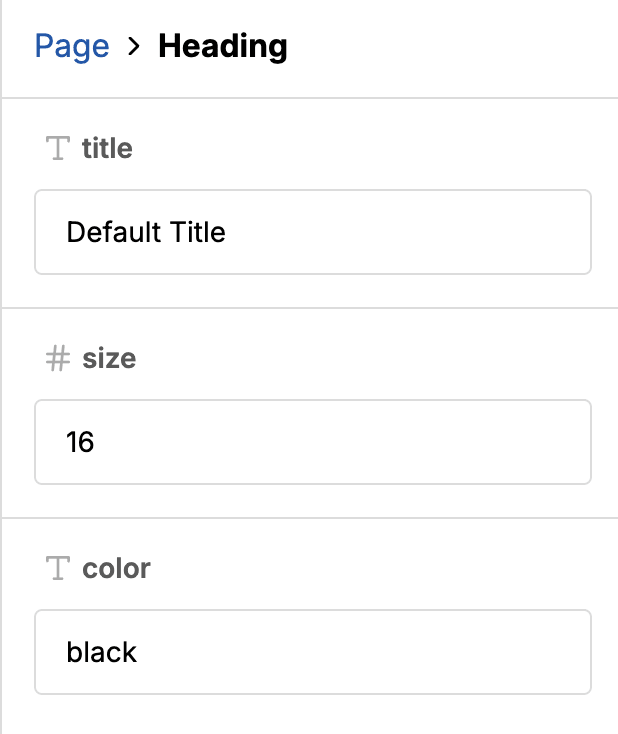
The new renderFields API enables field grouping by letting you control how a component’s fields are arranged:
const config = {
  components: {
    Heading: {
      fields: {
        title: { type: "text" },
        color: { type: "text" },
        size: { type: "number" },
      },
      renderFields: ({ fields }) => (
        <>
          {fields.title}
          {fields.size}
          {fields.color}
        </>
      ),
      // ...
    },
  },
};
Field groups
Use FieldGroup in renderFields or the fields override to group related fields:
import { FieldGroup } from "@puckeditor/core";

const config = {
  components: {
    Heading: {
      fields: {
        title: { type: "text" },
        color: { type: "text" },
        size: { type: "number" },
      },
      renderFields: ({ fields }) => (
        <>
          {fields.title}
          <FieldGroup label="Appearance">
            {fields.size}
            {fields.color}
          </FieldGroup>
        </>
      ),
      // ...
    },
  },
};
To render the fields inside a bordered container, use the "card" variant:
<FieldGroup label="Appearance" variant="card">
  {fields.color}
  {fields.size}
</FieldGroup>
Field groups can be collapsed and expanded by default. To prevent this, set collapsible to false:
<FieldGroup label="Appearance" collapsible={false}>
  {fields.color}
  {fields.size}
</FieldGroup>
Field tabs
Use FieldTab in renderFields or the fields override to organize fields into tabs:
import { FieldTab } from "@puckeditor/core";

const config = {
  components: {
    Heading: {
      fields: {
        title: { type: "text" },
        color: { type: "text" },
        size: { type: "number" },
      },
      renderFields: ({ fields }) => (
        <>
          <FieldTab label="Content">{fields.title}</FieldTab>
          <FieldTab label="Appearance">
            {fields.color}
            {fields.size}
          </FieldTab>
        </>
      ),
      // ...
    },
  },
};
New field: checkbox
The new checkbox field lets users select multiple values from a set of options:
const fields = {
  decorations: {
    type: "checkbox",
    options: [
      { label: "Underline", value: "underline" },
      { label: "Overline", value: "overline" },
      { label: "Strikethrough", value: "line-through" },
    ],
  },
};
Drag handles
You can now drag components using a handle on the action bar, making it easier to move components in deeply nested layouts.
To enable it, set the dnd.enableDragHandle prop to true:
<Puck dnd={{ enableDragHandle: true }} />Other changes
New object field prop: collapsible
Object fields can now be expanded and collapsed. Enable this behavior by setting the collapsible option to true:
const fields = {
  settings: {
    type: "object",
    collapsible: true,
    objectFields: {
      color: { type: "text" },
      size: { type: "number" },
    },
  },
};
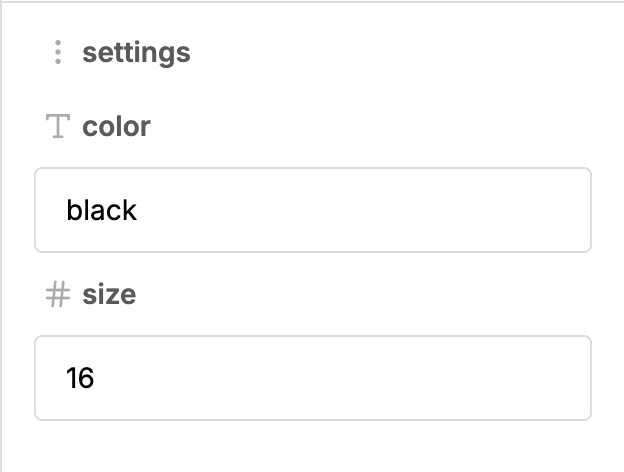
New object field prop: variant
Object fields now support different visual variants:
card: renders subfields inside a bordered container (default)flush: renders subfields without a bordered container
const fields = {
  settings: {
    type: "object",
    variant: "flush",
    objectFields: {
      color: { type: "text" },
      size: { type: "number" },
    },
  },
};
New fields override prop
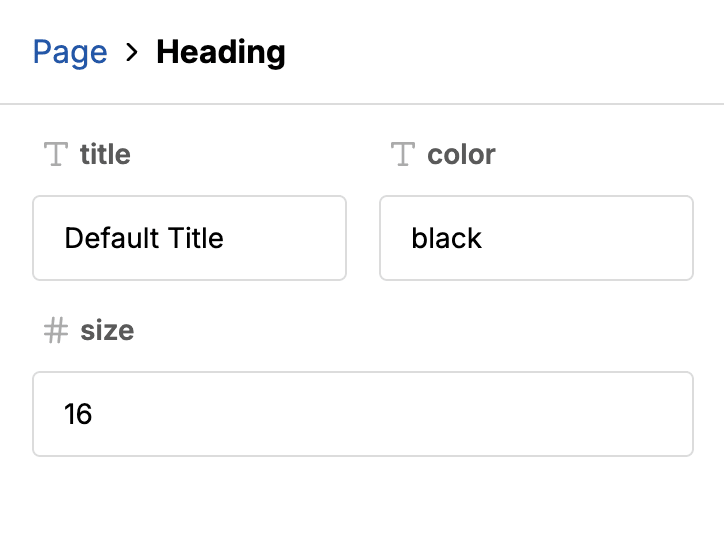
The fields override now receives each component’s field as a React node in the fields prop, keyed by field name.
Use it to create custom field layouts:
const overrides = {
  fields: ({ fields }) => {
    return (
      <div style={{ display: "flex", gap: "8px" }}>{Object.values(fields)}</div>
    );
  },
};
New actionBar override props
The actionBar override now receives two new props for drag handles:
dragHandle: Puck’s default drag handle nodedragHandleRef: a ref for registering your own drag handle
Both props are undefined unless dnd.enableDragHandle is enabled.
New component: ActionBar.DragHandle
Render Puck’s default drag handle with the ActionBar.DragHandle component. Use it when building custom action bars:
const overrides = {
  actionBar: ({ dragHandleRef }) => {
    return <ActionBar.DragHandle label="Drag to reorder" ref={dragHandleRef} />;
  },
};
Field transforms in <Render>
<Render> now accepts the fieldTransforms prop.
Use it to transform field values when rendering a page, without modifying the underlying data.
const fieldTransforms = {
  text: ({ value }) => <p style={{ fontWeight: "bold" }}>{value}</p>,
};

<Render config={config} data={data} fieldTransforms={fieldTransforms} />;
New component: InlineTextField
InlineTextField lets you add inline text editing to custom field types. Use it in a field transform to let users edit those fields directly in the canvas:
import { InlineTextField } from "@puckeditor/core";

const fieldTransforms = {
  heading: ({ value, componentId, propPath, isReadOnly }) => (
    <InlineTextField
      value={value}
      componentId={componentId}
      propPath={propPath}
      isReadOnly={isReadOnly}
    />
  ),
};
Hide fields by type
Set a fieldTypes override to null to hide all fields of that type:
const overrides = {
  fieldTypes: {
    text: null,
  },
};
Forward props to custom slot components
Additional props passed to a Slot are now forwarded to the element or component provided through as:
const component = {
  fields: {
    content: { type: "slot" },
  },
  render: ({ content: Content }) => <Content as="details" open />,
};
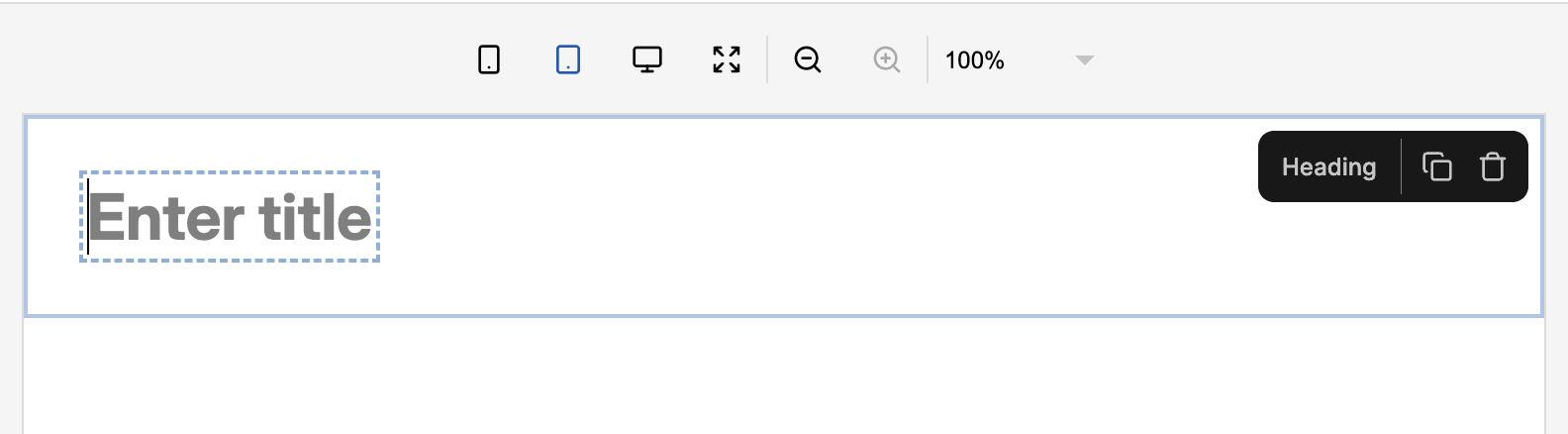
Inline field placeholders
The placeholder on text and textarea fields now appears in the canvas when inline editing is enabled:
const title = {
  type: "text",
  contentEditable: true,
  placeholder: "Enter title",
};
How to upgrade
To upgrade your Puck application to 0.24, follow the upgrade guide for step-by-step instructions.
Full changelog
You can find the full changelog, including bug fixes and known issues, in the GitHub release.
Contributors
Learn more about Puck
If you’re interested in learning more about Puck, check out the demo or read the docs. If you like what you see, please give us a star on GitHub to help others find Puck too!